Workspace 模块 ⚠ LCode 未集成 Workspace
命名空间:Krypton.Workspace · 程序集:Krypton.Workspace.dll
简介
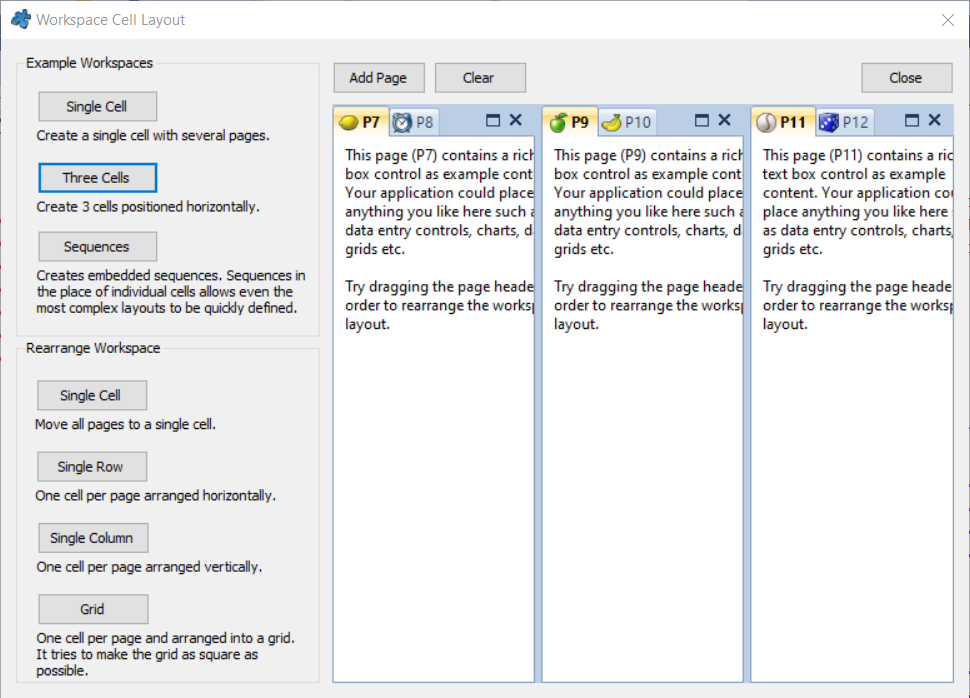
Krypton Workspace 模块提供灵活的多面板工作区布局系统。它允许将多个页面(KryptonPage)以水平或垂直分割的方式排列,每个分割区域可包含选项卡式堆叠的多个页面。Workspace 是 Docking 模块的底层基础——KryptonDockableWorkspace 正是继承自 KryptonWorkspace。即使不使用 Docking,Workspace 也可独立用于构建多文档界面(MDI 替代方案)。
注意:Workspace 模块尚未被 LCode 工具箱集成,无法通过设计器拖放使用。需要在项目中手动添加对
Krypton.Workspace.dll 的引用,并通过代码构建工作区布局。
核心类
| 类名 | 说明 |
|---|---|
KryptonWorkspace | 工作区控件,作为多面板布局的根容器。管理由 Cell 和 Sequence 组成的布局树。 |
KryptonWorkspaceCell | 工作区单元格,继承自 KryptonNavigator。每个 Cell 是一个选项卡容器,可包含多个 KryptonPage。 |
KryptonWorkspaceSequence | 工作区序列,定义子元素的排列方向(水平或垂直)。可嵌套以实现复杂布局。 |
KryptonPage | 工作区页面(来自 Krypton.Navigator),作为 Cell 中的单个内容页。 |
布局树结构
KryptonWorkspace
└── Root(KryptonWorkspaceSequence,根序列)
    ├── KryptonWorkspaceSequence(水平分割)
    │   ├── KryptonWorkspaceCell(左侧选项卡组)
    │   │   ├── KryptonPage "页面A"
    │   │   └── KryptonPage "页面B"
    │   └── KryptonWorkspaceCell(右侧选项卡组)
    │       └── KryptonPage "页面C"
    └── KryptonWorkspaceCell(底部面板)
        └── KryptonPage "输出"
常用属性
KryptonWorkspace
| 属性 | 类型 | 说明 |
|---|---|---|
Root | KryptonWorkspaceSequence | 根序列,所有布局元素的起点 |
ActiveCell | KryptonWorkspaceCell | 当前活动的单元格 |
ActivePage | KryptonPage | 当前活动的页面 |
CompactFlags | CompactFlags | 自动压缩策略(移除空 Cell、空 Sequence 等) |
AllowPageDrag | bool | 是否允许拖拽页面 |
PaletteMode | PaletteMode | 调色板模式 |
KryptonWorkspaceSequence
| 属性 | 类型 | 说明 |
|---|---|---|
Orientation | Orientation | 子元素排列方向(Horizontal / Vertical) |
Children | WorkspaceItemCollection | 子元素集合(Cell 或嵌套 Sequence) |
StarSize | string | 星号尺寸比例(如 "50*,50*" 表示等分) |
KryptonWorkspaceCell
| 属性 | 类型 | 说明 |
|---|---|---|
Pages | KryptonPageCollection | 单元格中的页面集合(继承自 Navigator) |
SelectedPage | KryptonPage | 当前选中的页面 |
NavigatorMode | NavigatorMode | 显示模式(通常为 BarTabGroup) |
StarSize | string | 星号尺寸比例 |
快速上手
在 LCode 中手动添加引用
// 在项目中添加引用:
// - Krypton.Workspace.dll
// - Krypton.Navigator.dll(Workspace 依赖 Navigator)
// - Krypton.Toolkit.dll

// 在 .csproj 中确认:
// <Reference Include="Krypton.Workspace">
//   <HintPath>..\packages\Krypton.Workspace.dll</HintPath>
// </Reference>
基本工作区布局(代码创建)
using Krypton.Workspace;
using Krypton.Navigator;

// 创建工作区
var workspace = new KryptonWorkspace();
workspace.Dock = DockStyle.Fill;
this.Controls.Add(workspace);

// 创建页面
var pageEditor = new KryptonPage("编辑器", "代码编辑器", "");
pageEditor.UniqueName = "Editor";
var editor = new KryptonRichTextBox();
editor.Dock = DockStyle.Fill;
pageEditor.Controls.Add(editor);

var pagePreview = new KryptonPage("预览", "实时预览", "");
pagePreview.UniqueName = "Preview";
var preview = new KryptonPictureBox();
preview.Dock = DockStyle.Fill;
pagePreview.Controls.Add(preview);

var pageOutput = new KryptonPage("输出", "编译输出", "");
pageOutput.UniqueName = "Output";

// 创建单元格(选项卡组)
var cellMain = new KryptonWorkspaceCell();
cellMain.Pages.AddRange(new KryptonPage[] { pageEditor, pagePreview });

var cellBottom = new KryptonWorkspaceCell();
cellBottom.Pages.Add(pageOutput);

// 构建布局:上下分割
workspace.Root.Orientation = Orientation.Vertical;
workspace.Root.Children.Add(cellMain);
workspace.Root.Children.Add(cellBottom);

// 设置比例(上方占 70%,下方占 30%)
cellMain.StarSize = "70*";
cellBottom.StarSize = "30*";
左右分割 + 选项卡
// 水平分割:左侧导航 + 右侧内容
workspace.Root.Orientation = Orientation.Horizontal;

var cellLeft = new KryptonWorkspaceCell();
cellLeft.StarSize = "25*";
cellLeft.Pages.Add(new KryptonPage("资源管理器", "", ""));
cellLeft.Pages.Add(new KryptonPage("服务器", "", ""));

var cellRight = new KryptonWorkspaceCell();
cellRight.StarSize = "75*";
cellRight.Pages.Add(new KryptonPage("文档1.cs", "", ""));
cellRight.Pages.Add(new KryptonPage("文档2.cs", "", ""));

workspace.Root.Children.Add(cellLeft);
workspace.Root.Children.Add(cellRight);
进阶用法
嵌套序列实现复杂布局
// 布局:左侧面板 | 右侧(上方编辑器 + 下方输出)
workspace.Root.Orientation = Orientation.Horizontal;

var cellLeft = new KryptonWorkspaceCell();
cellLeft.StarSize = "20*";
cellLeft.Pages.Add(new KryptonPage("工具箱", "", ""));

// 右侧垂直分割
var seqRight = new KryptonWorkspaceSequence();
seqRight.Orientation = Orientation.Vertical;
seqRight.StarSize = "80*";

var cellEditor = new KryptonWorkspaceCell();
cellEditor.StarSize = "70*";
cellEditor.Pages.Add(new KryptonPage("编辑", "", ""));

var cellOutput = new KryptonWorkspaceCell();
cellOutput.StarSize = "30*";
cellOutput.Pages.Add(new KryptonPage("输出", "", ""));

seqRight.Children.Add(cellEditor);
seqRight.Children.Add(cellOutput);

workspace.Root.Children.Add(cellLeft);
workspace.Root.Children.Add(seqRight);
运行时操作页面
// 向活动单元格添加新页面
var newPage = new KryptonPage("新文档", "", "");
newPage.UniqueName = Guid.NewGuid().ToString();
workspace.ActiveCell.Pages.Add(newPage);
workspace.ActivePage = newPage;

// 关闭当前页面
if (workspace.ActivePage != null)
{
    var page = workspace.ActivePage;
    workspace.ActiveCell.Pages.Remove(page);
    page.Dispose();
}

// 遍历所有页面
foreach (var page in workspace.AllPages())
{
    Console.WriteLine(page.UniqueName + " - " + page.Text);
}
页面拖拽
// 启用页面拖拽(用户可在单元格之间拖动选项卡)
workspace.AllowPageDrag = true;

// 响应拖拽完成
workspace.PageDragEnd += (s, e) =>
{
    // 拖拽结束后更新布局
    Console.WriteLine("页面已移动到新位置");
};
Workspace 与 Docking 的关系
Workspace 是 Docking 的底层基础。两者的关系如下:
KryptonDockableWorkspace继承自KryptonWorkspace,增加了与 DockingManager 的集成能力- Docking 的中央文档区域本质上就是一个 Workspace
- 如果只需要多面板分割布局(无需边缘停靠、浮动窗口),直接使用 Workspace 即可
- 如果需要完整的 IDE 风格停靠体验(拖拽到边缘、自动隐藏、浮动),则使用 Docking 模块
对应示例项目
📁 Source/Krypton Workspace Examples/
Demos 中包含以下示例:
Workspace Cell Layout— 单元格布局基础Workspace Page Dragging— 页面拖拽交互Workspace Cell Modes— 单元格的不同 NavigatorModeWorkspace Persistence— 布局持久化Workspace Memo Editor— 基于 Workspace 的备忘录编辑器