KryptonButton ✓ LCode 已集成 Toolkit
命名空间:Krypton.Toolkit · 程序集:Krypton.Toolkit.dll
简介
KryptonButton 是增强型按钮控件,替代标准 System.Windows.Forms.Button。它自动跟随 Krypton 主题渲染,支持图标、多行文字、下拉箭头(SplitButton 模式)、ButtonSpec 附加按钮,以及丰富的状态外观自定义(Normal / Tracking / Pressed / Disabled)。
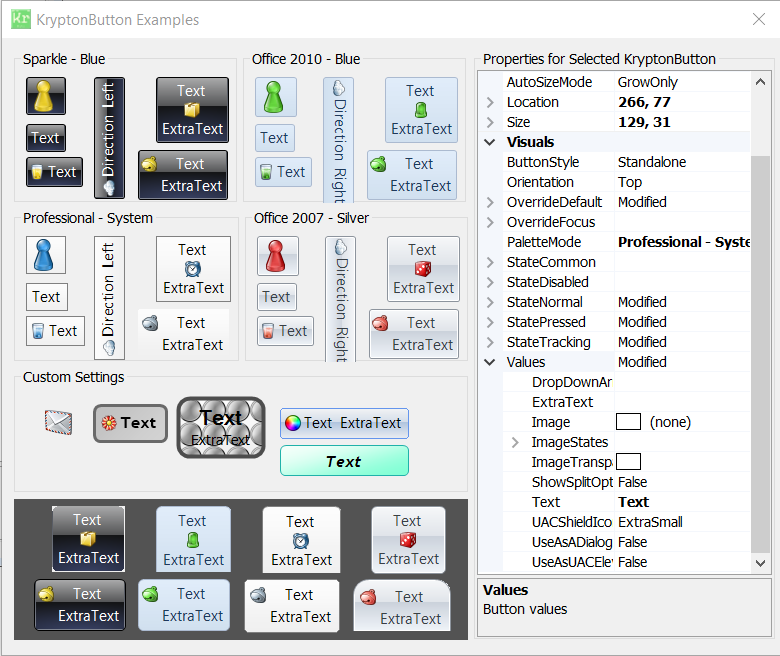
常用属性
| 属性 | 类型 | 说明 |
|---|---|---|
Values.Text | string | 按钮显示的文字 |
Values.Image | Image | 按钮左侧图标 |
Values.ImageTransparentColor | Color | 图标的透明色 |
Values.ExtraText | string | 副标题文字(显示在主文字下方) |
StateCommon.Content.ShortText.Font | Font | 所有状态下文字的字体 |
StateNormal.Back.Color1 | Color | 正常状态背景色 |
StateTracking.Back.Color1 | Color | 鼠标悬停时背景色 |
StatePressed.Back.Color1 | Color | 按下时背景色 |
ButtonStyle | ButtonStyle | 按钮视觉风格(Default / Form / FormClose / Command 等) |
Splitter | bool | 是否显示下拉箭头(SplitButton 模式) |
KryptonCommand | KryptonCommand | 绑定的命令对象(统一控制 Enabled/Text/Image) |
ButtonSpecs | 集合 | 附加的 ButtonSpec 按钮集合 |
快速上手
基本用法
using Krypton.Toolkit;

// 创建按钮
var btnOk = new KryptonButton();
btnOk.Values.Text = "确定";
btnOk.Values.Image = Properties.Resources.icon_ok;
btnOk.Location = new Point(20, 20);
btnOk.Size = new Size(100, 32);

// 点击事件
btnOk.Click += (s, e) => MessageBox.Show("按钮被点击");

this.Controls.Add(btnOk);
SplitButton 模式(下拉按钮)
var btnDrop = new KryptonButton();
btnDrop.Values.Text = "导出";
btnDrop.Splitter = true;  // 显示下拉箭头

// 关联右键菜单作为下拉内容
var menu = new KryptonContextMenu();
menu.Items.Add(new KryptonContextMenuItem("导出为 PDF"));
menu.Items.Add(new KryptonContextMenuItem("导出为 Excel"));
btnDrop.KryptonContextMenu = menu;
绑定 KryptonCommand
// 创建命令(可多个控件共享)
var cmdSave = new KryptonCommand();
cmdSave.Text = "保存";
cmdSave.Image = Properties.Resources.save_icon;
cmdSave.Enabled = true;
cmdSave.Click += (s, e) => SaveDocument();

// 按钮绑定命令
btnSave.KryptonCommand = cmdSave;
// 工具栏按钮也可绑定同一命令
toolStripBtnSave.KryptonCommand = cmdSave;
进阶用法
自定义各状态外观
// 悬停时变为绿色背景
btnOk.StateTracking.Back.Color1 = Color.FromArgb(220, 252, 231);
btnOk.StateTracking.Border.Color1 = Color.FromArgb(22, 163, 74);

// 按下时加深
btnOk.StatePressed.Back.Color1 = Color.FromArgb(187, 247, 208);

// 禁用时灰色文字
btnOk.StateDisabled.Content.ShortText.Color1 = Color.Gray;
使用 ButtonSpec 添加附加按钮
// 在按钮右侧添加一个小的关闭按钮
var specClose = new ButtonSpecAny();
specClose.Type = PaletteButtonSpecStyle.Close;
specClose.Click += (s, e) => this.Close();
btnOk.ButtonSpecs.Add(specClose);
提示:在 LCode 设计器中,从工具箱「LCode Components」分类拖放 KryptonButton 即可。属性面板中
Values 节点可设置文字和图标。
对应示例项目
📁 Source/Krypton Toolkit Examples/KryptonButton Examples/
包含:基本按钮、SplitButton 演示(GIF)、各种 ButtonStyle 对比。