KryptonFolderBrowserDialog ✓ LCode 已集成 对话框
命名空间:Krypton.Toolkit · 程序集:Krypton.Toolkit.dll
简介
KryptonFolderBrowserDialog 是增强型文件夹浏览对话框,替代标准 System.Windows.Forms.FolderBrowserDialog。它自动跟随 Krypton 主题渲染,以树形结构展示文件系统目录,用户可浏览并选择目标文件夹。选择的路径通过 SelectedPath 属性获取,常用于设置输出目录、选择项目路径、指定工作目录等场景。
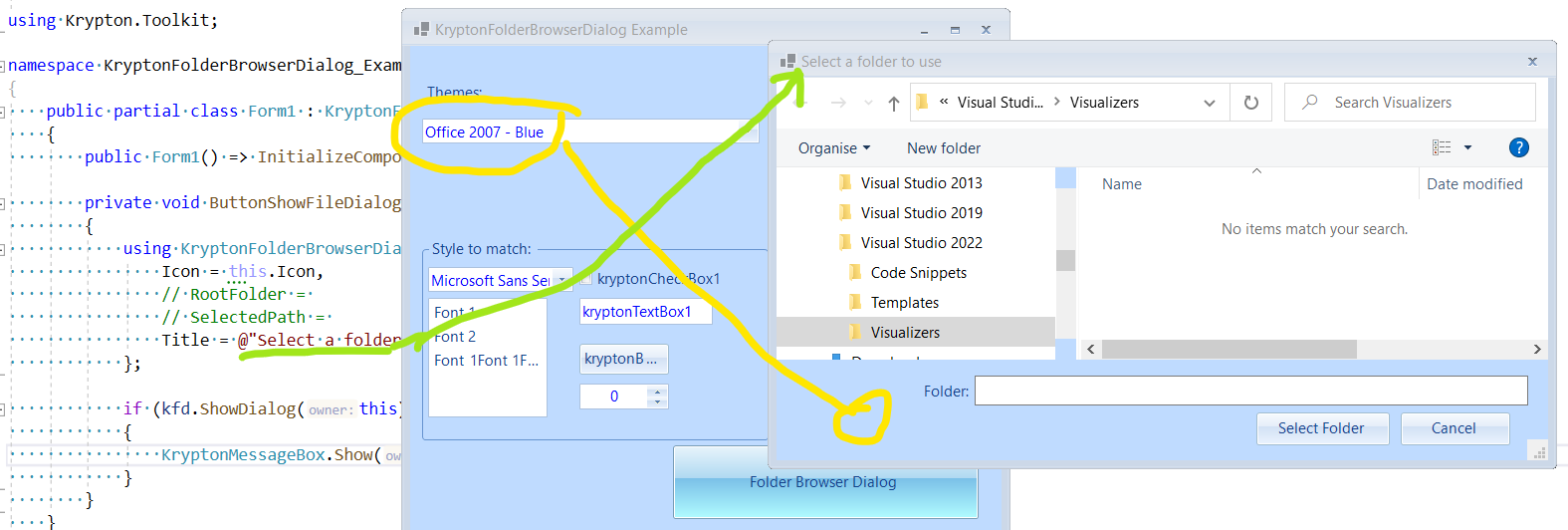
常用属性
| 属性 | 类型 | 说明 |
|---|---|---|
SelectedPath | string | 用户选择的文件夹路径 |
Description | string | 对话框顶部的说明文字 |
RootFolder | Environment.SpecialFolder | 浏览的根目录(默认 Desktop) |
ShowNewFolderButton | bool | 是否显示"新建文件夹"按钮 |
AddToRecent | bool | 是否将选择的路径添加到最近使用列表 |
AutoUpgradeEnabled | bool | 是否自动升级为 Vista 风格对话框 |
ClientGuid | Guid | 对话框的客户端 GUID(用于记忆窗口位置) |
OkRequiresInteraction | bool | 是否要求用户交互后才能点击确定 |
快速上手
基本用法
using Krypton.Toolkit;

// 创建文件夹浏览对话框
var folderDialog = new KryptonFolderBrowserDialog();
folderDialog.Description = "请选择输出目录:";
folderDialog.ShowNewFolderButton = true;
folderDialog.SelectedPath = Environment.GetFolderPath(
    Environment.SpecialFolder.MyDocuments);

if (folderDialog.ShowDialog(this) == DialogResult.OK)
{
    string outputPath = folderDialog.SelectedPath;
    lblOutputPath.Text = outputPath;
    Properties.Settings.Default.OutputPath = outputPath;
    Properties.Settings.Default.Save();
}
选择项目目录
var folderDialog = new KryptonFolderBrowserDialog();
folderDialog.Description = "选择项目所在文件夹";
folderDialog.RootFolder = Environment.SpecialFolder.MyComputer;
folderDialog.ShowNewFolderButton = true;

if (folderDialog.ShowDialog(this) == DialogResult.OK)
{
    // 验证选择的目录是否包含项目文件
    var projectFiles = Directory.GetFiles(
        folderDialog.SelectedPath, "*.csproj");

    if (projectFiles.Length > 0)
    {
        OpenProject(projectFiles[0]);
    }
    else
    {
        KryptonMessageBox.Show(this,
            "所选文件夹中没有找到项目文件(.csproj)。",
            "提示",
            MessageBoxButtons.OK,
            MessageBoxIcon.Warning);
    }
}
进阶用法
批量文件处理目录选择
// 选择源目录和目标目录
private void SetupBatchProcess()
{
    // 选择源目录
    var dlgSource = new KryptonFolderBrowserDialog();
    dlgSource.Description = "选择源文件目录(包含待处理文件)";
    dlgSource.ShowNewFolderButton = false;

    if (dlgSource.ShowDialog(this) != DialogResult.OK)
        return;

    // 选择目标目录
    var dlgTarget = new KryptonFolderBrowserDialog();
    dlgTarget.Description = "选择输出目录(处理结果保存位置)";
    dlgTarget.ShowNewFolderButton = true;
    dlgTarget.SelectedPath = dlgSource.SelectedPath;

    if (dlgTarget.ShowDialog(this) != DialogResult.OK)
        return;

    // 验证源和目标不能相同
    if (dlgSource.SelectedPath == dlgTarget.SelectedPath)
    {
        KryptonMessageBox.Show(this,
            "源目录和目标目录不能相同。",
            "路径错误",
            MessageBoxButtons.OK,
            MessageBoxIcon.Error);
        return;
    }

    StartBatchProcess(dlgSource.SelectedPath, dlgTarget.SelectedPath);
}
设置界面中的目录配置
// 设置页面:工作目录配置
private void btnBrowseWorkDir_Click(object sender, EventArgs e)
{
    var dlg = new KryptonFolderBrowserDialog();
    dlg.Description = "选择工作目录";
    dlg.ShowNewFolderButton = true;
    dlg.SelectedPath = txtWorkDir.Text;

    if (dlg.ShowDialog(this) == DialogResult.OK)
    {
        txtWorkDir.Text = dlg.SelectedPath;

        // 确保目录存在
        if (!Directory.Exists(dlg.SelectedPath))
        {
            Directory.CreateDirectory(dlg.SelectedPath);
        }
    }
}
提示:设置
ShowNewFolderButton = true 允许用户在对话框中直接创建新文件夹。RootFolder 可限制浏览范围,如设为 Environment.SpecialFolder.MyComputer 可从"此电脑"开始浏览所有磁盘。
对应示例项目
📁 Source/Krypton Toolkit Examples/KryptonFolderBrowserDialog Examples/
包含:基本目录选择、新建文件夹、路径验证、批量处理演示。