KryptonDropButton ✓ LCode 已集成 Toolkit
命名空间:Krypton.Toolkit · 程序集:Krypton.Toolkit.dll
简介
KryptonDropButton 是下拉按钮控件,外观为带下拉箭头的按钮,点击后弹出关联的 KryptonContextMenu 菜单。与 KryptonButton 的 Splitter 模式不同,DropButton 整个按钮区域都用于触发下拉,没有独立的 Click 动作。适合纯菜单入口场景,如"排序方式"、"筛选条件"等。
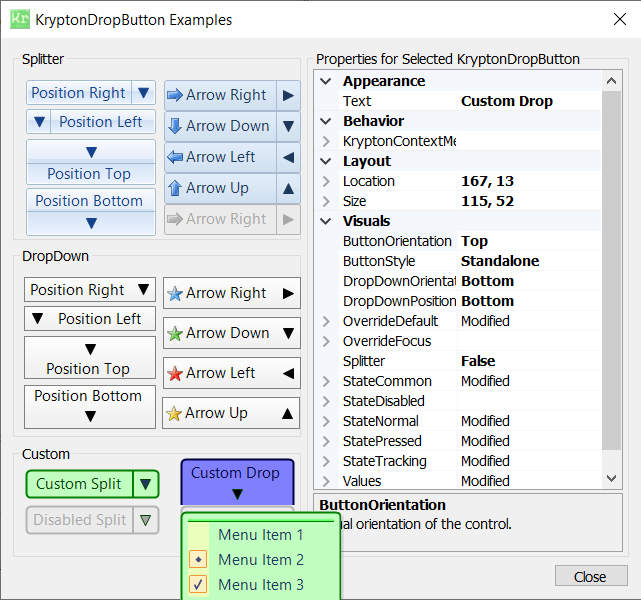
常用属性
| 属性 | 类型 | 说明 |
|---|---|---|
Values.Text | string | 按钮显示的文字 |
Values.Image | Image | 按钮左侧图标 |
KryptonContextMenu | KryptonContextMenu | 关联的下拉菜单(点击时弹出) |
ButtonStyle | ButtonStyle | 按钮视觉风格 |
DropDownOrientation | VisualOrientation | 菜单弹出方向(默认下方) |
StateCommon.Content.ShortText.Font | Font | 文字字体 |
StateNormal.Back.Color1 | Color | 正常状态背景色 |
StateTracking.Back.Color1 | Color | 悬停时背景色 |
StatePressed.Back.Color1 | Color | 按下时背景色 |
KryptonCommand | KryptonCommand | 绑定的命令对象 |
快速上手
基本用法(排序菜单)
using Krypton.Toolkit;

// 创建下拉按钮
var btnSort = new KryptonDropButton();
btnSort.Values.Text = "排序";
btnSort.Values.Image = Properties.Resources.icon_sort;
btnSort.Location = new Point(20, 20);
btnSort.Size = new Size(100, 32);

// 创建关联菜单
var menu = new KryptonContextMenu();
var itemAsc = new KryptonContextMenuItem("按名称升序");
var itemDesc = new KryptonContextMenuItem("按名称降序");
var itemDate = new KryptonContextMenuItem("按修改日期");

itemAsc.Click += (s, e) => SortFiles(SortOrder.Ascending);
itemDesc.Click += (s, e) => SortFiles(SortOrder.Descending);
itemDate.Click += (s, e) => SortFiles(SortOrder.ByDate);

menu.Items.AddRange(new[] { itemAsc, itemDesc, itemDate });
btnSort.KryptonContextMenu = menu;

this.Controls.Add(btnSort);
带子菜单和分隔线
var menu = new KryptonContextMenu();

// 顶级菜单项
menu.Items.Add(new KryptonContextMenuItem("复制"));
menu.Items.Add(new KryptonContextMenuItem("粘贴"));
menu.Items.Add(new KryptonContextMenuSeparator());

// 带子菜单的项
var itemExport = new KryptonContextMenuItem("导出为");
itemExport.Items.Add(new KryptonContextMenuItem("PDF"));
itemExport.Items.Add(new KryptonContextMenuItem("Excel"));
itemExport.Items.Add(new KryptonContextMenuItem("CSV"));
menu.Items.Add(itemExport);

btnActions.KryptonContextMenu = menu;
进阶用法
菜单弹出前动态更新
// 在菜单即将弹出时更新菜单项状态
menu.Opening += (s, e) =>
{
    // 根据当前选中项数量决定菜单可用性
    bool hasSelection = listView.SelectedItems.Count > 0;
    itemCopy.Enabled = hasSelection;
    itemDelete.Enabled = hasSelection;

    // 动态显示选中数量
    itemDelete.Text = hasSelection
        ? $"删除 ({listView.SelectedItems.Count} 项)"
        : "删除";
};
自定义弹出方向
// 让菜单向上弹出(适合放在窗口底部的按钮)
var btnBottom = new KryptonDropButton();
btnBottom.Values.Text = "更多操作";
btnBottom.DropDownOrientation = VisualOrientation.Top;
btnBottom.Dock = DockStyle.Bottom;
提示:如果需要一个按钮同时支持"点击执行默认操作"和"点箭头弹出菜单",请改用 KryptonButton 并设置
Splitter = true。KryptonDropButton 整个区域只触发下拉。
对应示例项目
📁 Source/Krypton Toolkit Examples/KryptonDropButton Examples/
包含:基本下拉菜单、多级子菜单、动态菜单更新演示。