KryptonHeader ✓ LCode 已集成 Toolkit
命名空间:Krypton.Toolkit · 程序集:Krypton.Toolkit.dll
简介
KryptonHeader 是页眉 / 标题栏控件,用于在窗口或面板顶部显示带图标的标题和描述文字,并带有渐变背景。它常作为表单、设置页、向导页的顶部横幅,起到分区和说明作用。支持主标题(Heading)和副标题(Description)两行文字,以及左侧大图标。
常用属性
| 属性 | 类型 | 说明 |
|---|---|---|
Values.Heading | string | 主标题文字 |
Values.Description | string | 副标题 / 描述文字 |
Values.Image | Image | 左侧图标 |
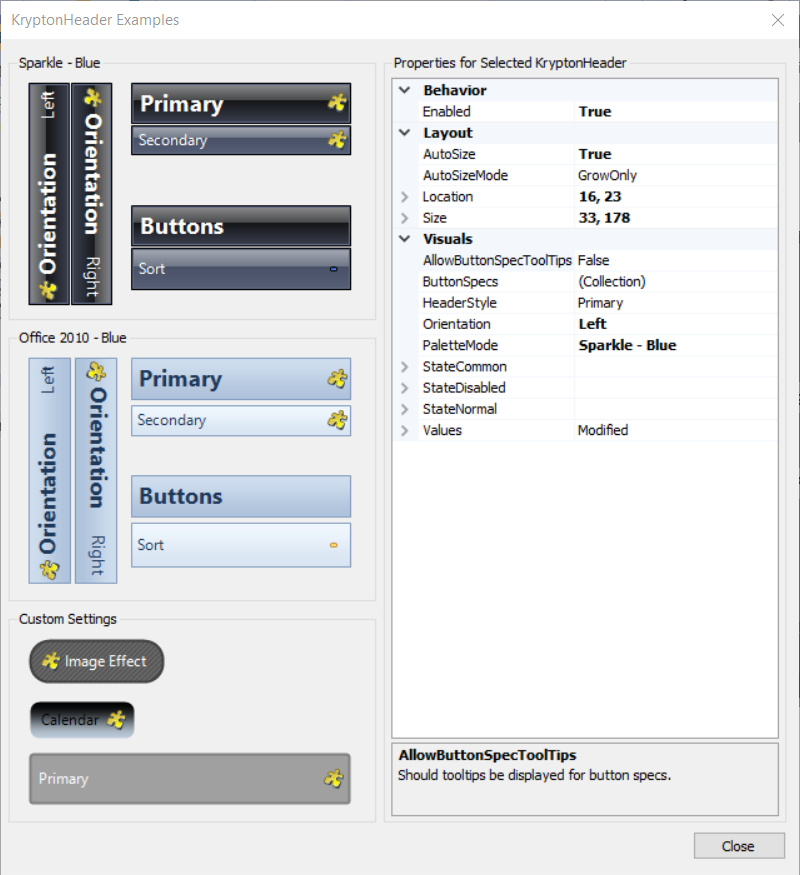
HeaderStyle | HeaderStyle | 页眉风格(Primary / Secondary / Form / Calendar 等) |
HeaderPosition | VisualOrientation | 页眉位置(Top / Bottom / Left / Right) |
StateCommon.Back.Color1 | Color | 背景渐变起始色 |
StateCommon.Back.Color2 | Color | 背景渐变结束色 |
StateCommon.Content.ShortText.Font | Font | 主标题字体 |
StateCommon.Content.LongText.Font | Font | 描述文字字体 |
ButtonSpecs | 集合 | 页眉右侧附加按钮集合 |
快速上手
基本用法(设置页顶部横幅)
using Krypton.Toolkit;

// 创建页眉
var header = new KryptonHeader();
header.Values.Heading = "账户设置";
header.Values.Description = "管理您的个人信息、安全选项和通知偏好";
header.Values.Image = Properties.Resources.icon_settings_48;
header.Dock = DockStyle.Top;

this.Controls.Add(header);
不同 HeaderStyle 对比
// 主要页眉(大标题,醒目渐变)
var headerPrimary = new KryptonHeader();
headerPrimary.Values.Heading = "欢迎使用 LCode";
headerPrimary.HeaderStyle = HeaderStyle.Primary;
headerPrimary.Dock = DockStyle.Top;

// 次要页眉(较朴素,用于子区域)
var headerSecondary = new KryptonHeader();
headerSecondary.Values.Heading = "最近打开的项目";
headerSecondary.HeaderStyle = HeaderStyle.Secondary;
进阶用法
自定义渐变背景(翡翠绿主题)
// 翡翠绿渐变横幅
header.StateCommon.Back.Color1 = Color.FromArgb(15, 118, 110);
header.StateCommon.Back.Color2 = Color.FromArgb(13, 148, 136);

// 白色标题文字
header.StateCommon.Content.ShortText.Color1 = Color.White;
header.StateCommon.Content.ShortText.Font =
    new Font("Microsoft YaHei UI", 14f, FontStyle.Bold);

// 浅绿描述文字
header.StateCommon.Content.LongText.Color1 = Color.FromArgb(204, 251, 241);
在页眉右侧添加操作按钮
// 页眉右侧添加"帮助"和"关闭"按钮
var specHelp = new ButtonSpecHeader();
specHelp.Type = PaletteButtonSpecStyle.Context;
specHelp.ToolTipBody = "查看帮助";
specHelp.Click += (s, e) => ShowHelp();

var specClose = new ButtonSpecHeader();
specClose.Type = PaletteButtonSpecStyle.Close;
specClose.Click += (s, e) => this.Close();

header.ButtonSpecs.Add(specHelp);
header.ButtonSpecs.Add(specClose);
提示:KryptonHeader 通常设置
Dock = DockStyle.Top 置于窗口顶部。如果需要带边框和内容的完整分组面板,请改用 KryptonHeaderGroup,它将页眉和内容区域组合在一起。
对应示例项目
📁 Source/Krypton Toolkit Examples/KryptonHeader Examples/
包含:各种 HeaderStyle 对比、自定义渐变、页眉按钮演示。